 CloudPhone
Blog
Android emulator for iPhone? 3 ways to play Android games, no jailbreak
There is no Android emulator you can install on an iPhone, because iOS cannot run Android apps. You can still play Android-only games, Android-first betas and APK-only apps with no jailbreak. We compare three methods on setup time, latency and cost; the easiest runs in Safari in about 3 minutes and keeps running after you close it.
Add CloudPhone Go as a preferred source on Google, and our new guides show up more often when you search for games and idle setups. One tap, and you can remove it any time.
Can you play Android games on an iPhone?
Yes, but not by installing them. iOS cannot run Android APKs, and a jailbreak does not change that. Only three methods actually let you play Android games from an iPhone: one, a cloud phone, where the game runs on a real Android phone in a data centre and your iPhone controls it through Safari; two, remote control, where your iPhone drives a PC emulator or a spare Android phone at home; three, a used Android phone. None of them needs a jailbreak or sideloading. The easiest is the first: run the game on a cloud phone in a Taiwan data centre, about 3 minutes from Google sign-in to the game downloading, and it keeps running 24/7 after you close Safari.
Because the game never runs on your iPhone, nothing on the iPhone changes, the game does not eat your storage, and long idle sessions will not turn your phone into a hand warmer.
Below: which games and apps are Android-only, a comparison table of the three methods, the setup steps and the cost of each, installing APKs that are not on Google Play, iPhone Safari tips, then troubleshooting and FAQ.
Android-only games and apps: where iPhone players get stuck
Most big mobile games are on both stores. People usually look for Android games on iPhone when they hit one of these Android-only cases:
- Google Play only: some indie games, small studios, or new titles testing the waters without an iOS version yet.
- Android-only betas: many closed tests and early access rounds open on Android first, sometimes as an APK from the official site or a store like TapTap, while iPhone players wait for launch.
- Region-locked versions: some regional releases are only in that country's store. Switching App Store region usually needs a separate Apple account and a local payment method; the Android version is sometimes a plain APK on the official site.
- Android-only servers or editions: for example some Chinese channel servers exist only on Android, and their accounts usually do not carry over to iOS.
- APK-only apps: some tools, companion apps and vendor apps are distributed only as an APK.
- Data that does not cross platforms: in many Japanese games, paid currency cannot move between iOS and Android, so an Android account stays on Android.
- Alt accounts: an iPhone usually runs one copy of a game, so an alt means constant logging out and in.
We deliberately do not publish a list of Android-only titles: store availability changes fast and such lists go stale within months. A practical test: if the App Store search finds nothing and the official site only shows a Google Play or APK button, this guide is for you. For popular games we have already set up, see our Game guides page.
Three methods compared: cloud phone, remote control, used Android phone
| Method | Modify your iPhone? | Runs the Android version? | Keeps running when the iPhone is off? | Setup time | Main cost |
|---|---|---|---|---|---|
| Method 1: cloud phone (CloudPhone Go) | No, just Safari | Yes, on a real Android device | Yes, 24/7 | About 3 minutes | Monthly plan, Starter from NT$489/month in beta; needs a connection |
| Method 2: remote control of a PC emulator or spare Android at home | No, install a remote control app | Usually; some games detect emulators | Only while the PC or spare phone stays on | About 30 minutes | PC electricity, home upload bandwidth, touch mapped to a mouse |
| Method 3: buy a used Android phone | No | Yes, the most compatible option | Yes, if it stays plugged in | About 1 hour including setup | The phone, charging and desk space, two phones to carry |
To be clear, jailbreaking and sideloading solve installing iOS apps that are not on the App Store. They do not run Android games. Only a physical or cloud Android device, or remote control of a computer running Android, gets you the Android version.
To be fair, if you already have a spare Android phone, or a PC that is on anyway with an emulator, those routes cost the least. A cloud phone suits people who do not want another machine at home, want 24/7 idling, and want to pick it up from an iPhone anywhere. We run the long-term numbers, electricity included, in "Cloud phone vs emulator vs spare phone: which is cheapest to idle?"
Method 1: a cloud phone, set up in Safari in 3 minutes
This is the only method that does not add a machine to your home. Before you start you need:
- An iPhone or iPad with up-to-date iOS and Safari. Very old browsers may not play the stream.
- A Google account to sign in to CloudPhone Go, which you can also use for Google Play inside the cloud phone. We never store a password.
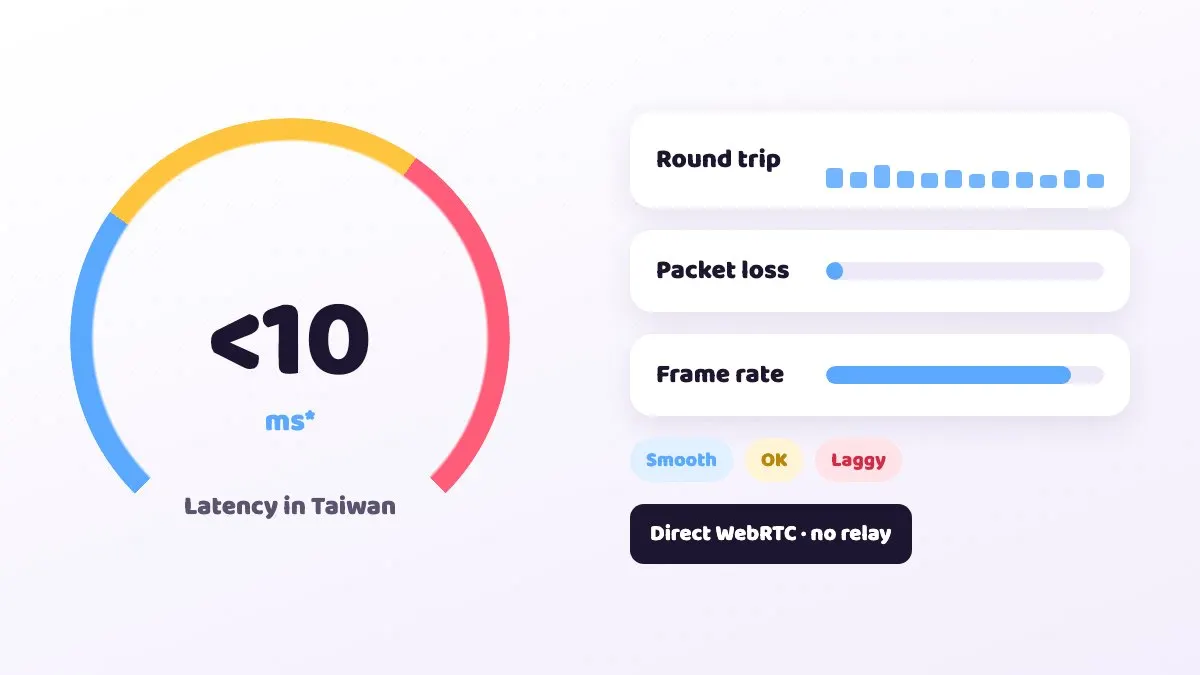
- Stable Wi-Fi or 5G. From Taiwan fibre and 5G we measured a median latency under 10 ms (September 2026; it varies by network). How it works and how to check yours is in "Cloud phone latency explained".
- A CloudPhone Go plan.
The setup:
- Open cloudphonego.com in Safari, tap Get started and sign in with Google.
- Choose a plan (Stripe checkout). Your cloud phone boots in seconds.
- Open Google Play inside the cloud phone, sign in to your Google account and install the game you want.
- Launch the game, sign in and play. To idle, turn on the game's auto-battle and simply close Safari.
- Tap Safari's Share button and choose Add to Home Screen, so next time it opens from an icon like an app.
The first Google Play sign-in works like setting up any new Android phone. After that, game data lives in the cloud phone's 32 GB of storage, not on your iPhone.
It mostly depends on what you play and whether you idle. Every plan gets dedicated resources on a flagship 8-core ARM processor and includes 32 GB of storage, and during the beta both monthly and yearly prices are about an extra 10% off.
| Your situation | Suggested plan | Beta monthly (yearly per month) |
|---|---|---|
| Most mobile games: daily play, overnight idling or one alt | Starter, 2 cores 4 GB | NT$489 (NT$419) |
| Heavier 3D games such as Lineage W | Standard, 4 cores 8 GB | NT$929 (NT$789) |
| Heavy 3D games, high graphics, or AI guides running at the same time | Performance, 8 cores 16 GB | NT$1,749 (NT$1,489) |
If you are unsure, start with Starter monthly and run the game you play most to see how smooth it feels. You can upgrade or cancel renewal later, and the billing page shows your renewal date and invoices.
Method 2: remote control of a PC emulator or a spare Android phone at home
If a PC at home is on anyway, or you have an Android phone that still works, this route costs almost nothing. The game runs on the device at home; the iPhone is only the remote.
- PC: install an Android emulator (BlueStacks, LDPlayer or similar), sign in to Google Play and install the game.
- Install Chrome Remote Desktop (or a streaming tool such as Parsec or Moonlight) on both the PC and the iPhone, and pair them with the same Google account.
- Spare phone: install a remote control app on the old Android (AirDroid or TeamViewer QuickSupport, for example) and connect from the iPhone.
- Set the PC or spare phone never to sleep or lock, or you will not be able to connect once you are out.
Three caveats. First, some games detect emulators and refuse to run or limit features; a spare phone does not have that problem. Second, latency depends on your home upload bandwidth and the network you are on, usually well above a connection to a data centre, so action games feel half a beat slow. Third, a PC running 24/7 costs real electricity; we worked it out in "Cloud phone vs emulator vs old phone".
Method 3: buy a used Android phone
The most direct and most compatible method: the game runs on a real handset, nothing sees an emulator, and your iPhone storage stays free. It suits people who want to play, not to idle 24/7.
- Choosing: a mid-range phone from the last three years is enough, with at least 6 GB of RAM, and check it can update to the Android version the game requires.
- Setup: sign in to Google, install the game, and turn off automatic system updates and battery restrictions so the game is not killed in the background.
- Idling: running 24/7 means staying plugged in; a battery kept at full charge for months can swell, so keep it ventilated and use the original charger.
- Cost: two phones to carry, and to see the screen on your iPhone you are back to method 2.
If your goal is long-term idling with the option to take over from your iPhone, that phone usually ends up as a plugged-in idle machine at home. Then it is the comparison above again: a machine at home, or a rented one in a data centre, and the difference is electricity, noise and who maintains it.
How do you install games that are not on Google Play?
The APK is installed on the cloud phone, not on your iPhone, so a non-jailbroken iPhone works fine. If a game only offers an APK, or you have a split package such as XAPK, APKS or APKM:
- Download the installer from the game's official site in Safari and save it to the Files app.
- In the CloudPhone Go control bar, choose upload file and pick that installer.
- The file uploads in chunks to /sdcard/Download on the cloud phone, with a progress bar.
- When it finishes, choose install. APK, APKS, APKM and XAPK are all supported.
Re-uploading the same file skips the transfer. You can also download straight from the browser inside the cloud phone and skip the upload. Only use the official source or one you trust; unknown APKs can carry malware.
iPhone Safari tips: Home Screen, PiP, landscape and paste
- Add to Home Screen: from Safari's Share menu. After that, one tap on the icon takes you back to your cloud phone, no URL to type.
- Landscape: turn off Portrait Orientation Lock in Control Center first. When the iPhone turns sideways, the cloud phone's navigation moves to the side and stays off MOBA and action game buttons. In portrait it sits at the bottom.
- Full-screen immersive mode: the controls collapse into a floating button for a bigger picture; tap it when you need back, volume or rotate.
- Picture-in-picture: iOS Safari supports PiP, so the game can shrink into a corner while you reply to messages or wait for stamina.
- Typing Chinese or Japanese: type on your iPhone, copy, then use paste on the control bar. The first time, Safari asks for clipboard permission, and it may show a small Paste button you need to tap.
- Physical keyboard on iPad: type directly, and Cmd+V pastes too, which helps in chat-heavy games.
- Connection quality: live RTT, packet loss and FPS are on screen. Check them first when things feel slow.
Multi-touch, swipe and scroll all work, and back, home, recents, volume, rotate, wake and reboot are on the control bar, so most games feel much like playing on an Android phone.
Black screen or lag? Troubleshooting
| Problem | Likely cause | Fix |
|---|---|---|
| Black screen or will not connect | A corporate VPN or strict firewall blocking direct WebRTC | Turn off the VPN or switch to mobile data or your home network |
| Stream will not play at all | Safari or iOS is too old | Update iOS and Safari |
| Lag or dropped frames | Weak Wi-Fi or a congested network | Check RTT and packet loss, move closer to the router or try 5G |
| Paste does nothing | Clipboard permission not allowed | Allow Safari to read the clipboard and tap Paste when it appears |
| Game frozen | The game or device has hung | Reboot from the control bar; the watchdog also tries to recover it |
One common surprise: closing Safari does not close the game. If you come back and it is still running, that is expected. The cloud phone stays on.
FAQ
Do I need to jailbreak or change iPhone settings to play Android games?
No. All three methods are jailbreak-free: a cloud phone is a web page in Safari and nothing on the iPhone changes; remote control only needs a remote app; a used Android phone has nothing to do with the iPhone at all. A jailbreak solves installing iOS apps that are not on the App Store; it does not make iOS run Android games.
Can a non-jailbroken iPhone install APKs?
Not on the iPhone itself, but you can upload an APK from your iPhone to the cloud phone and install it there; APK, XAPK, APKS and APKM all work, or download straight from the browser inside the cloud phone. With methods 2 and 3 the APK goes on the PC emulator or the Android phone at home.
Which of the three methods has the lowest latency?
It depends on where the game runs and where you are. Method 3 has no streaming latency because the phone is in your hand. Method 1 from Taiwan to a Taiwan data centre: CloudPhone Go measured a median connection latency under 10 ms in September 2026. Method 2 goes through your home upload bandwidth and is usually the highest of the three, so action games feel half a beat slow.
Does the game stop when I close Safari?
No. Only the video to your iPhone stops; the cloud phone keeps running 24/7, so finding the game still running when you come back is normal. The same goes for a remote-controlled PC or spare phone, as long as it does not sleep or lock.
Will a game flag a cloud phone or an emulator as cheating?
A cloud phone is a real Android device, and normal play is the same as on an Android handset; some games do detect and limit emulators. Each game has its own rules on alt accounts, virtual GPS and similar features, so check and follow its terms of service. We cannot guarantee any game's decision.
How much does each method cost?
A cloud phone is a monthly plan: in beta, Starter is NT$489/month, Standard NT$929 and Performance NT$1,749, cheaper yearly, cancel renewal any time. Remote control is nearly free, but count the electricity of a PC running 24/7. A used Android phone is a one-off purchase plus the power to keep it plugged in.
Sources
- Apple Support: add a website icon to your iPhone Home Screen in Safari
- Apple Support: multitask with Picture in Picture on iPhone
- Apple Support: unauthorized modification of iOS (jailbreak risks)
- WebKit blog: Async Clipboard API (2020-06-23), iOS Safari shows a Paste callout
- Apple Support: change your Apple Account country or region
- Google Chrome Help, "Access another computer with Chrome Remote Desktop"
About CloudPhone Go: it is a Taiwan cloud phone service. Your game runs on a dedicated, real Android phone in a Taiwan data center and keeps going after you turn off your computer or phone.